
ULearnIT Transcript

Use these steps to download your learning transcript (list of completions) from ULearnIT.
- Go to ULearnIT.
- Enter your username (employee ID number found on the back of your badge) and password, then click Log In.
- If you can’t remember your password, click Forgot Password to reset it.
- Need help? Email learning@pinellas.gov.
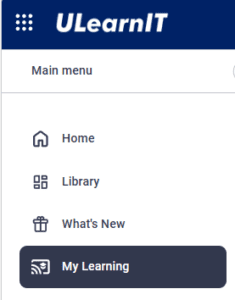
3. From the main menu on the left, select My Learning.
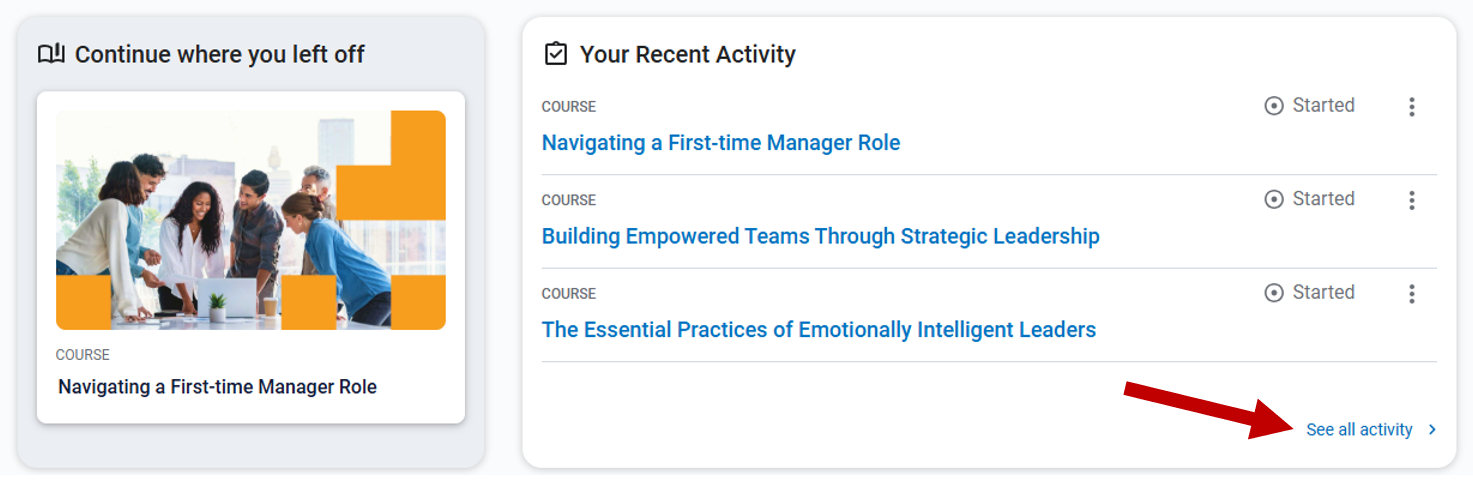
4. Click See All Activity in Your Recent Activity box.
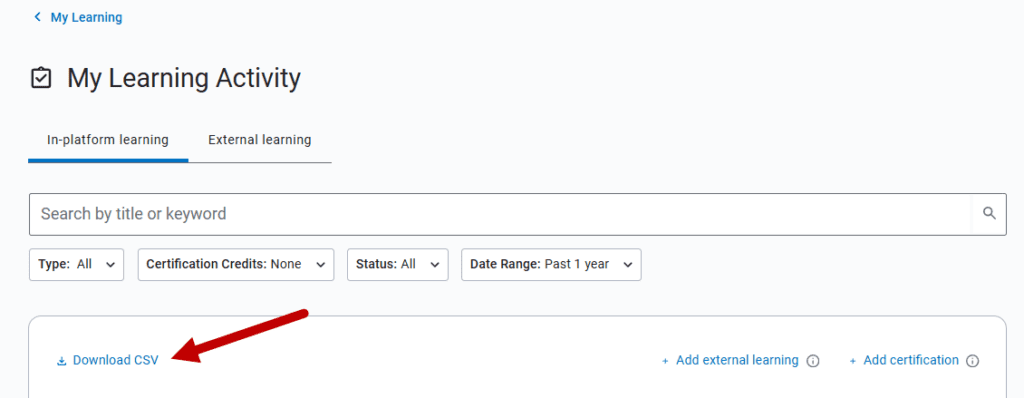
5. This will open your My Learning Activity page. Click Download CSV.
NOTE: The default date range is the past year. To select a different start date, click the pull-down menu on the Date Range button, select a different date on the calendar, and click Apply Dates.
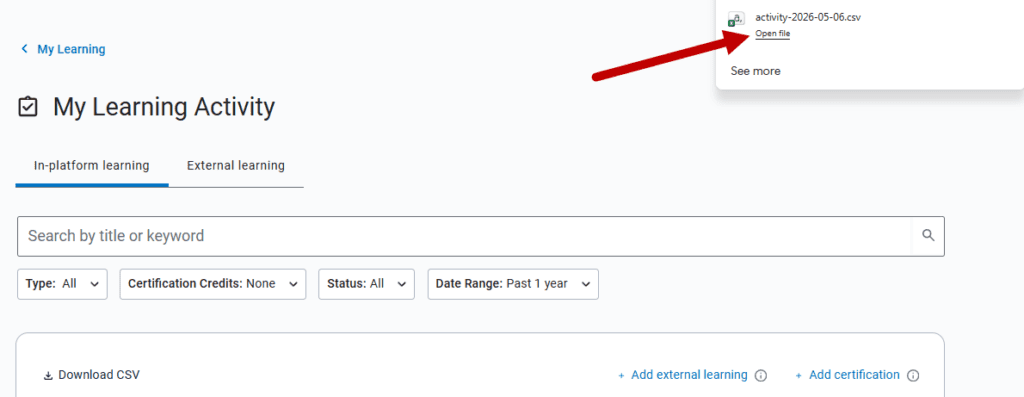
6. This will download a transcript into your Downloads folder. Click Open File in the downloads window at top right to view and save your transcript in Microsoft Excel.
5/20/26